Why scrolling wins5 min read
iPhone Screen Time Not Working? Fix It, Then Fix the Real Problem
iPhone Screen Time not working usually comes down to six causes: Share Across Devices desyncing limits, apps sitting in Always Allowed, a passcode you set yourself, the Ignore Limit button, a timezone that moves the midnight reset, and reinstalled apps starting fresh. Fix the technical cause first, then the harder one: a limit you control is a suggestion.
On this page (10 sections)
- Find your cause in ten seconds
- Cause 1: Share Across Devices is desyncing your limits
- Cause 2: the app is in Always Allowed
- Cause 3: you know your own passcode
- Cause 4: Ignore Limit is doing exactly what it says
- Cause 5: timezone and the midnight reset
- Cause 6: reinstalled apps start fresh
- When iPhone Screen Time not working really means it is working
- What to do once the limit is not enough
- Common questions
Two very different complaints hide behind the same search. One is that iPhone Screen Time is not working in a literal sense: limits do not fire, data is missing, Downtime ignores you. The other is that it works exactly as designed and you walk through it anyway.
Both are worth solving, and they need different answers. Start with the technical causes, because they are quick to rule out.
Find your cause in ten seconds
| Symptom | Most likely cause |
|---|---|
| Limits fire on one device but not another | Share Across Devices |
| Downtime ignores a specific app | Always Allowed |
| The limit vanishes for the rest of the day | Ignore Limit For Today |
| Limits reset at an odd hour | Timezone or a schedule crossing midnight |
| Usage resets after you reinstall an app | Per app limit rather than a category limit |
| Everything works and you scroll anyway | The passcode is in your own head |
Work down that list before assuming the feature is broken. Five of the six are fixed in under two minutes, and the sixth is the one worth actually thinking about.
Cause 1: Share Across Devices is desyncing your limits
This is the most common real bug and the least obvious.
Under Settings, Screen Time, there is a Share Across Devices switch. When it is on, limits are meant to apply across everything signed into your Apple Account. In practice, when two devices disagree about usage, the merge can reset counters or apply the wrong limit, and a limit that resets is a limit that never fires.
Turn it off if you only care about your iPhone. If you genuinely need cross device limits, turn it off, wait a minute, turn it back on, and give it a day to settle before judging.
Cause 2: the app is in Always Allowed
Always Allowed exists so Phone and Messages survive Downtime. It quietly catches more than that. Apps added there ignore Downtime completely, and people forget what they added months ago.
Settings, Screen Time, Always Allowed. Read the whole list rather than skimming it. Safari being allowed is the usual culprit, because Safari is a route to every site you were trying to avoid.
Cause 3: you know your own passcode
This is not a bug, and it is the reason most Screen Time setups fail.
If you set the passcode, you can lift any limit in about four seconds, and you will, at the exact moment you least want to. A limit you can remove is a suggestion with a slightly annoying interface.
The fix is to have someone else set the passcode: a partner, a friend, a housemate. Do not use a passcode you can recover through your Apple Account, because that recovery route exists and you will find it.
Cause 4: Ignore Limit is doing exactly what it says
When an app limit fires, iOS offers One More Minute, Remind Me in 15 Minutes, and Ignore Limit For Today. That last one ends the limit until tomorrow.
If you have tapped it, Screen Time is working perfectly and reporting nothing because there is nothing left to enforce. Only a passcode held by someone else puts a real barrier in front of that button.
Cause 5: timezone and the midnight reset
Limits reset at midnight local time. If you travel, or if your phone is set to a different timezone than you expect, the reset happens at a moment that does not match your day, and a nightly scrolling habit can land in a freshly reset window.
Check Settings, General, Date and Time, and make sure Set Automatically is on. Downtime crossing midnight is a related trap: a schedule from 10pm to 7am spans two days and is a common source of confusion when only half of it appears to apply.
Cause 6: reinstalled apps start fresh
Deleting and reinstalling an app has historically reset its accumulated usage against a limit. Category limits survive this better than per app limits, because the category still matches the reinstalled app.
If you are hitting a limit and then reinstalling to clear it, you already know the technical problem is not the real one.
When iPhone Screen Time not working really means it is working
Rule the six causes out and you may find the honest answer: it fires, and you go around it.
This is not a personal failing, it is a design consequence. Apple built Screen Time for parents managing a child's device, where the passcode holder and the user are different people. Using it on yourself puts both roles in one head, and the person setting the limit is calm while the person hitting it is not.
Every serious blocker on iPhone inherits this, because they are all built on the same Apple frameworks. That includes ours. The longer argument is in why app blockers don't work.
What to do once the limit is not enough
Three options, in rough order of how much they ask of you.
Give the passcode away. The cheapest, most effective change available, and the one people resist most. If you want a wall, you need a wall someone else holds.
Block the surface rather than the app. Most people do not need less Instagram, they need no Reels. iOS cannot do that inside the native app, but a browser that loads the mobile site can hide one feed while DMs and search keep working. That route is in how to block Instagram Reels on iPhone.
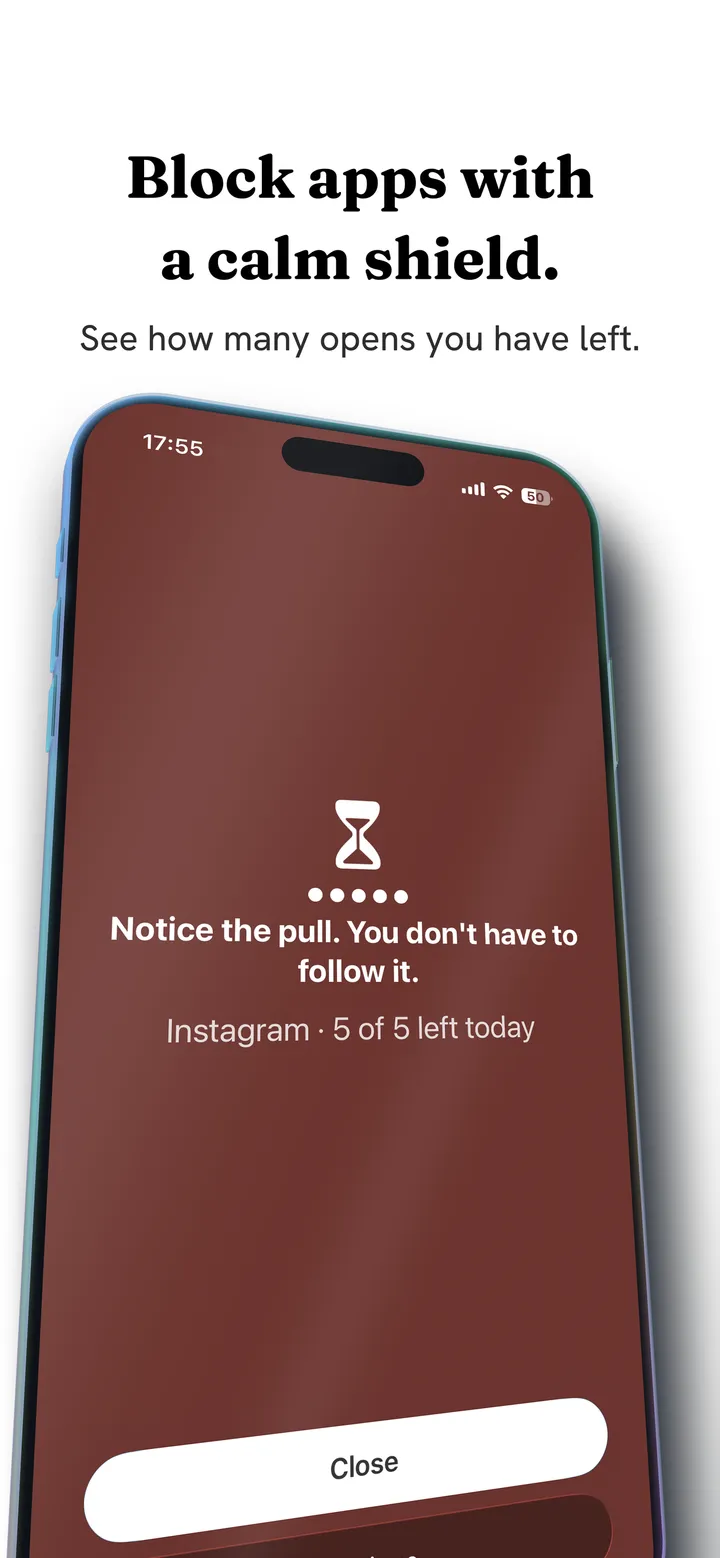
Change the mechanism entirely. A limit intervenes once, at the door. Friction intervenes on every swipe: each scroll becomes a drag through on screen fluid, and past a threshold you set, a bubble has to form under your thumb and rise off the screen before the feed advances. A fast flick bursts it, and a burst advances nothing. There is no Ignore Limit button because there is no limit, and no wall means nothing to resent.
That is a different promise from a block, and you should pick deliberately. Friction versus blocking sets out which problem each one actually solves. Fluid Friction is on the App Store, and on Google Play if you also carry an Android phone.
Common questions
Why do my iPhone app limits keep resetting?
Usually Share Across Devices, which merges usage between devices signed into the same Apple Account and can reset counters when they disagree. A timezone mismatch causing the midnight reset to land at the wrong hour is the other common cause.
Why does Screen Time not block an app during Downtime?
The app is almost certainly in Always Allowed, which exists so Phone and Messages survive Downtime but quietly catches whatever else was added. Check the full list under Settings, Screen Time, Always Allowed, and look for Safari in particular.
Can I stop myself using Ignore Limit For Today?
Only by not holding the passcode. Have a partner or friend set it, and avoid a passcode recoverable through your own Apple Account, because that recovery route exists and it will be found at the exact moment you want it.
Does Screen Time work if I reinstall the app?
Deleting and reinstalling an app has historically cleared its accumulated usage against a per app limit. Category limits hold up better, since the reinstalled app still matches the category it belongs to.
Is there a better option than Screen Time on iPhone?
Every iPhone blocker is built on the same Apple frameworks, so blocking power is similar across the category. What differs is the mechanism, so the real choice is between a wall someone else controls and continuous friction that never locks you out.