Block the feed, keep the app4 min read
How to Block Instagram Reels on iPhone
There is no setting inside Instagram, and no setting inside iOS, that removes Reels while leaving the rest of Instagram working. To block Instagram Reels on iPhone you either limit the whole app with Screen Time, or you open Instagram in a browser that can hide the Reels tab and stop the Reels feed from swiping. Only the second option keeps your DMs and your own feed.
On this page (5 sections)
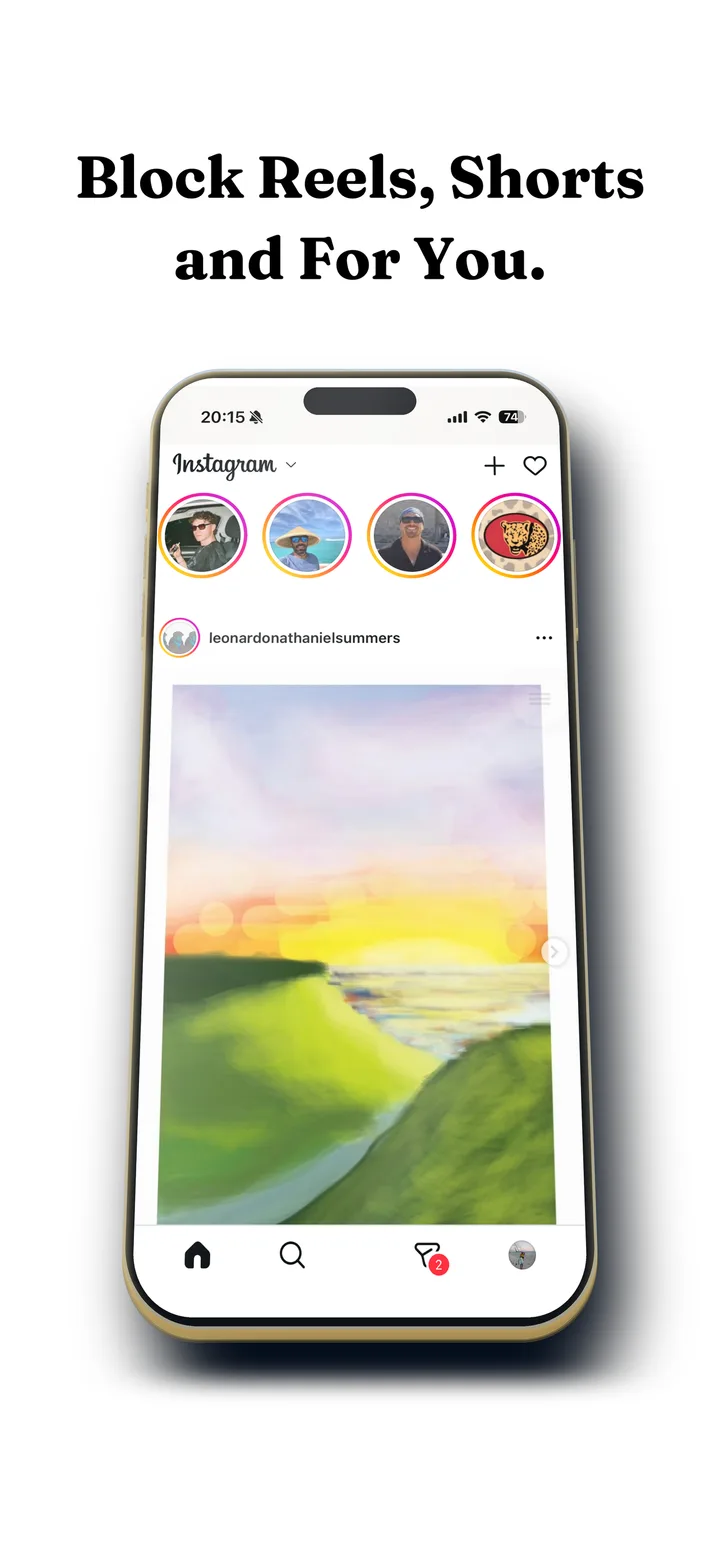
Instagram on iPhone is really two apps sharing one icon. One holds the people you chose to follow, your DMs, and the photos you opened the app to see. The other is Reels, a full screen video feed that does not care who you follow.
To block Instagram Reels on iPhone and keep the first app, you need a workaround, because neither Instagram nor Apple gives you a switch. It takes a few minutes and costs nothing.
What changes once it is set up:
- Stays: DMs and group chats, Stories, posting, your profile, search, and the feed of people you follow.
- Goes: the Reels tab, and the swipe from one reel to the next, so a reel someone sends you plays once and stops.
- Optional: DMs Only mode for work hours, and friction on the home feed.
Block Instagram Reels on iPhone in five steps
Fluid Friction opens Instagram's mobile site inside its own browser, which is the one place iOS allows an app to restyle what Instagram shows you.
Install Fluid Friction from the App Store
Get it on the App Store. There is no account and no sign in for Fluid Friction itself, and the functional tools are free.
Open Instagram inside Fluid Friction and sign in
Instagram's own login page loads in the in-app browser, exactly as it would in Safari. You sign in to Instagram, not to us, and the session stays on your device.
Open the settings gear and turn on Block Reels
This hides the Reels tab and blocks the Reels feed. Videos in your normal feed still play. A reel someone sends you in a DM still opens, it just will not swipe to the next one, which is the part that turns a single video into forty minutes.
Add the surrounding switches you want
Block Explore keeps search but removes the Explore grid. Block Stories hides the tray. Following Only makes the home feed just the accounts you follow. DMs Only strips Instagram down to messages, which is the setting people use during work hours.
Move the native app out of reach
Delete Instagram, or bury it in the App Library and put Fluid Friction on your home screen. If the original app is one tap away, you will use the original app. A Screen Time limit on the native app makes this stick.
Why iPhone makes this harder than Android
On Android, an app can use the accessibility service to see which screen is in front of you, so a blocker can close the Reels player without touching your inbox. That route is in how to block Instagram Reels on Android.
iOS has no equivalent. Apple's sandbox forbids one app from drawing over, reading, or interfering with another. Apple's Screen Time framework, which every serious iPhone focus app is built on, works at the level of whole apps and whole websites. It can hide Instagram behind a shield. It cannot reach inside Instagram and remove a tab.
Instagram's own settings do not fill the gap either. The daily time reminder is a notification you dismiss. "Not interested" tunes recommendations slightly. Sensitive content control changes which reels you see, never how many. Setting the home feed to Following helps, but Instagram resets it and the Reels tab stays either way.
Make the home feed hard to scroll too
Hiding Reels solves Reels. It does not solve the home feed, which is still an infinite column that moves for free with one thumb flick.
Scroll friction changes the swipe rather than the destination. Inside the friction browser, each scroll becomes a drag through on screen fluid. Past a threshold you set, a bubble forms under your thumb and has to rise off the screen before the feed advances. Flick fast and the bubble bursts, and a burst does not advance anything.
The point is not to make Instagram unusable. It is to make absent minded scrolling impossible while intentional use stays easy. The mechanics are in how scroll friction works.
Which method fits which problem
Apple's Screen Time can limit Instagram or block it on a schedule, and with a passcode a friend sets it is genuinely effective for some people. Its limit is that it treats Instagram as one object: when it fires you lose DMs along with Reels, which is why so many people tap "Ignore limit for today" and stop taking it seriously. More on that in why app blockers don't work.
| What you want | Use |
|---|---|
| Less Instagram overall | Screen Time limit or Downtime, with a passcode someone else sets |
| Reels gone, DMs kept | Friction browser with Block Reels |
| Instagram for work only | DMs Only mode during work hours |
| To stop scrolling, not to stop using it | Scroll friction on the home feed |
| A hard wall you cannot pass | Screen Time with a trusted passcode holder |
Common questions
How do I disable Reels on Instagram on iPhone?
Instagram and iOS have no setting for it. Open Instagram inside Fluid Friction's in-app browser and turn on Block Reels: the Reels tab disappears and reels stop swiping to the next one, while DMs, Stories and your feed keep working.
Can you block Reels without deleting Instagram?
Yes. Hiding the Reels tab and blocking the Reels feed inside a friction browser leaves your DMs, Stories, following feed and profile working normally. Most people then bury or delete the native app so the unrestricted version is not one tap away.
Does Apple's Screen Time block Instagram Reels only?
No. Screen Time works at the level of whole apps and whole websites, so it can limit or shield Instagram entirely but cannot remove one surface inside it. That is an iOS sandbox rule, not a gap any app can work around.
Is there a way to keep DMs but lose the feed?
Yes. DMs Only mode restricts Instagram to Direct Messages, which is the setting people use during work hours when they need to be reachable but not fed. Block Feed does the narrower version, hiding the home feed of posts while leaving Stories.
Will Instagram know I am using a different browser?
You sign in on Instagram's own page inside the in-app browser, the same way you would in Safari, and the session stays on your device. Nothing about your account changes, and your password is never seen by Fluid Friction.
Does this work on Android too?
Android has a stronger version of it. There, feature blocking closes the Reels surface inside Instagram's real app rather than in a browser, using the accessibility service. The Android guide covers that route.
Is it free to block Reels on iPhone?
Yes. Fluid Friction is free on the App Store with no account, and Block Reels and every other blocking tool are included. The optional Pro subscription, $4.99 a month or $39.99 a year, only adds cosmetic extras such as themes and dark mode.
Is it safe to use Instagram inside another app?
You sign in on Instagram's own page, so Fluid Friction never sees your password, and your session stays on your device. It does not read your posts or messages. The details are in the iOS privacy policy.