Block the feed, keep the app4 min read
How to Block the TikTok For You Page on iPhone
TikTok gives you no way to turn the For You page off, and iOS gives no app permission to reach inside TikTok and do it for you. To block the TikTok For You page on iPhone you have to open TikTok somewhere you control, which means a browser that can hide the For You feed while leaving Following, search and messages intact.
On this page (5 sections)
The For You page is the most refined recommendation system ever shipped on a phone, and it opens by default the moment you tap the icon. Following is different: it is the accounts you picked, in a feed that runs out.
To block the TikTok For You page on iPhone and keep the rest of TikTok, you open TikTok somewhere an app is allowed to change it. It takes a few minutes and costs nothing.
What changes once it is set up:
- Stays: Following, search, messages and your profile.
- Goes: the For You feed, and if you want, Explore and LIVE too.
- Optional: a Session Timer, and friction on the feed that remains.
Block the TikTok For You page on iPhone in six steps
Opening TikTok's mobile site inside an app that can restyle it is the only route on iPhone that reaches a single feed. Fluid Friction does this.
Install Fluid Friction from the App Store
Get it on the App Store. Fluid Friction has no account of its own, and the functional tools are free.
Open TikTok inside the friction browser
TikTok's own login page loads in the in-app browser, the same as it would in Safari. You sign in to TikTok, not to us, and the session stays on your device.
Turn on Block For You feed
The algorithmic feed stops being available. Following remains, search remains, and your messages remain. What changes is what greets you when the app opens.
Trim the surfaces that replace it
Block Explore removes the discovery grid, which is where the pull migrates to once For You is gone. Hide LIVE removes the live tab. Hide Upload removes the create button if posting is not why you are there.
Turn on the Session Timer
It shows how long the current session has run. This sounds trivial and is the single most commonly kept setting, because the number is usually higher than people guess.
Put the friction browser where TikTok used to be
Move or delete the native app. If the unrestricted version sits one tap away on your home screen, that is the one your thumb will find.
Why the iPhone version of this question is different
On Android, an accessibility service can recognise the For You surface and act on it inside TikTok's real app, which is the approach in how to block the TikTok For You page. iOS does not allow that. Apple's sandbox stops any app from reading or modifying another, and Screen Time only understands whole apps and whole websites. It can shield TikTok completely; it cannot open TikTok and hide one feed.
TikTok's own controls do not help either. Not interested retrains the algorithm without reducing how much of it you see. Refresh your For You feed resets recommendations, which is a reset button, not an off switch. The built in screen time limit is a passcode you set yourself, and there is no toggle that makes Following the landing tab.
Friction on the feed that remains
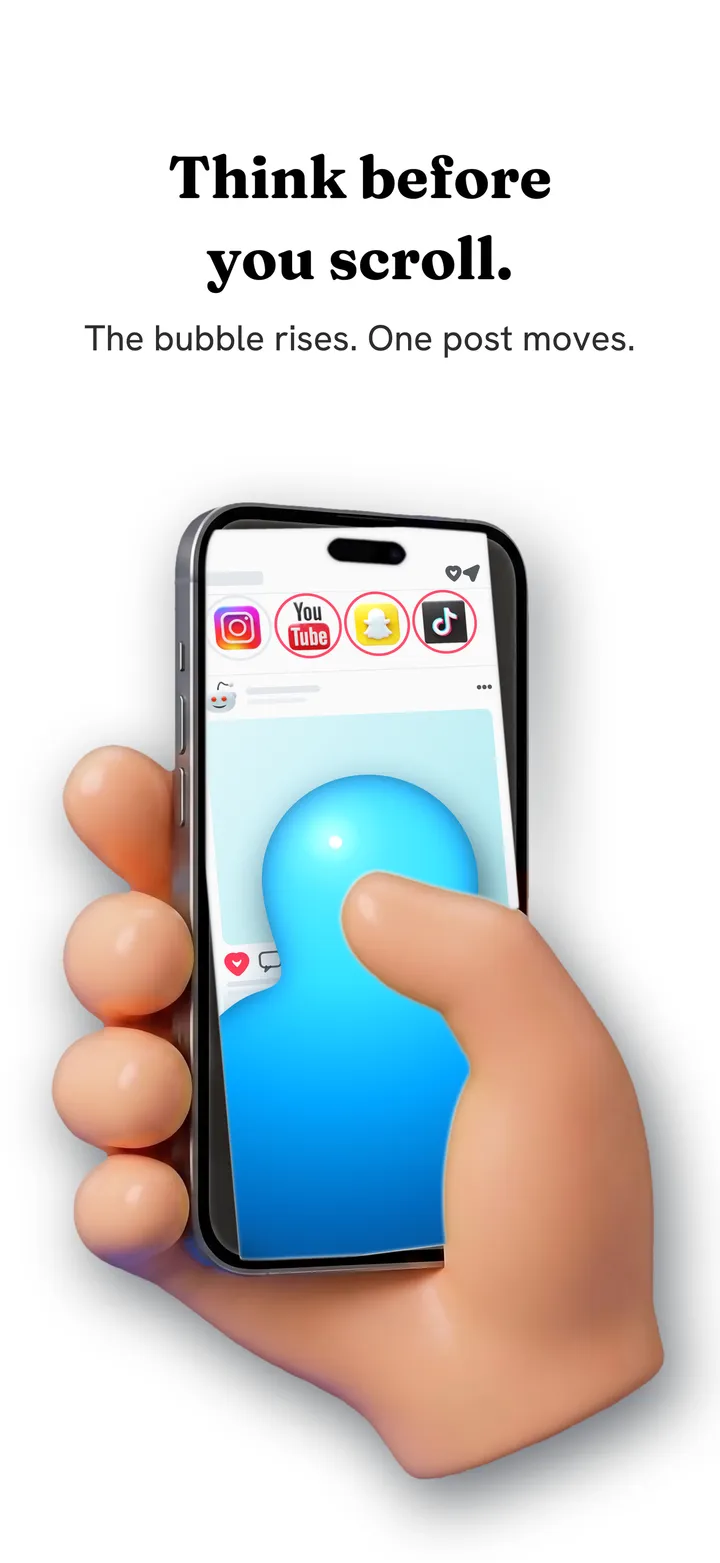
Following is finite, which already fixes most of the problem. But short video is a gesture habit as much as a content habit, and the gesture survives the feed. Scroll friction changes the gesture itself. Each swipe becomes a drag through on screen fluid, and past a threshold you set, a bubble has to form under your thumb and rise off the screen before the next video arrives. A fast flick bursts the bubble instead, and a burst advances nothing.
On a short video feed the effect is immediate, because the format depends on the next video being free. See how scroll friction works.
What people notice first is that TikTok gets shorter, not rarer. You open it, watch the people you follow, run out, and leave. Running out is exactly the thing the For You page was built to remove, and a surprising amount of the pull was the feeling that the app knew you.
Which approach matches your goal
Screen Time on the whole app works, especially with the passcode held by someone else, but TikTok goes away along with your DMs and saved videos. Most people hit the limit when they need the app, tap past it, and stop respecting it, the pattern in why app blockers don't work.
| What you actually want | What to use |
|---|---|
| TikTok gone for a while | Screen Time limit or Downtime, passcode held by someone else |
| Only the people you chose | Block For You feed, Following stays |
| To scroll deliberately rather than not at all | Scroll friction |
| To keep posting for work | Hide the feeds, leave Upload alone |
Common questions
How do I restrict TikTok on iPhone?
Screen Time can limit or block the whole TikTok app, which also takes your messages with it. To restrict only the For You feed, open TikTok inside Fluid Friction's browser and turn on Block For You feed, then put a Screen Time limit on the native app.
Can you make TikTok show only Following?
Not with a TikTok setting, because there is no option to change the default tab. In a friction browser, blocking the For You feed leaves Following as what you land on, along with search and messages.
Does blocking the For You page stop DMs working?
No. The For You feed and Direct Messages are separate surfaces, so blocking one leaves the other alone. There is a separate switch for messages if you want TikTok reduced to conversations only.
Why can I not block just the algorithm on iPhone?
Because iOS forbids one app from reading or modifying another, and Apple's Screen Time framework only understands whole apps and whole domains. Reaching a single feed requires loading TikTok's mobile site somewhere an app is allowed to change it.
Will TikTok still work normally after this?
Yes, minus the feeds you switched off. Following, search, your profile and messages behave as usual, and you can turn any switch back off at any time unless you have deliberately locked the settings.
Is the Android version different?
Yes, and it is stronger. On Android the For You surface can be acted on inside TikTok's real app rather than in a browser. The main TikTok guide explains that approach.