Block the feed, keep the app4 min read
How to Block YouTube Shorts on iPhone
YouTube's built in option hides the Shorts shelf for 30 days and leaves the Shorts tab, the search results and the full screen player alone. To block YouTube Shorts on iPhone for good you need to watch YouTube somewhere that can hide the shelf, the tab and the player at once, because iOS will not let any app reach inside YouTube's own app to do it.
On this page (5 sections)
YouTube is the app most people are least willing to delete, because half of it is genuinely useful. Subscriptions, tutorials, the thing you searched for at 11pm because you needed it. Shorts is the other half, and it is the half that turns a two minute visit into an hour.
To block YouTube Shorts on iPhone without losing the useful half, you need to watch YouTube somewhere that can hide Shorts, because iOS will not let any app reach inside YouTube's own app. It takes a few minutes and costs nothing.
What changes once it is set up:
- Stays: search, subscriptions, playlists and normal video playback, signed in or logged out.
- Goes: the Shorts shelf, the Shorts tab and the full screen Shorts player.
- Optional: Search Only Mode, which hides the home feed, and Hide Recommendations, which makes a video end instead of handing you another.
Block YouTube Shorts on iPhone in five steps
Fluid Friction opens YouTube's mobile site inside its own browser, which iOS allows an app to restyle.
Install Fluid Friction from the App Store
Get it on the App Store. No account, no sign in for Fluid Friction, and every functional tool is free.
Open YouTube inside it
You do not have to sign in. YouTube works logged out in the friction browser, which is the fastest way to try this before deciding anything. Signing in to your own Google account is optional and happens on Google's page, not ours.
Turn on Block Shorts
One switch hides the Shorts shelf on the home feed, the Shorts tab in the navigation, and the Shorts player itself. Search, subscriptions, playlists and normal video playback are untouched.
Add Search Only Mode or Hide Recommendations if you want more
Search Only Mode hides the home feed while search and playback keep working. Hide Recommendations removes related videos, up next and autoplay, so a video ends instead of handing you another one. Hide Comments removes the comment section, which is its own scroll.
Make the friction browser the easy option
Move YouTube's native app off your home screen and put Fluid Friction where it used to be. A Screen Time limit on the native app makes the choice stick when you are tired.
Why iOS cannot do what Android does here
On Android, an accessibility service lets a blocker recognise the Shorts player as a distinct screen and close it inside YouTube's real app. That route is in how to block YouTube Shorts on Android.
iOS has no such mechanism, by design. Apple's sandbox means no app can see or change what another app is drawing, and Screen Time operates on whole apps and whole domains. It can shield YouTube; it cannot remove one tab from inside it.
YouTube's own settings do not fill the gap. Hiding the Shorts shelf lasts 30 days. Turning off watch history starves every recommendation, not just Shorts, and breaks "continue watching". Premium removes ads and does nothing about Shorts. None of them removes the Shorts tab, or stops a short opening full screen from search or from a link a friend sent.
Make the Shorts feed resist your thumb
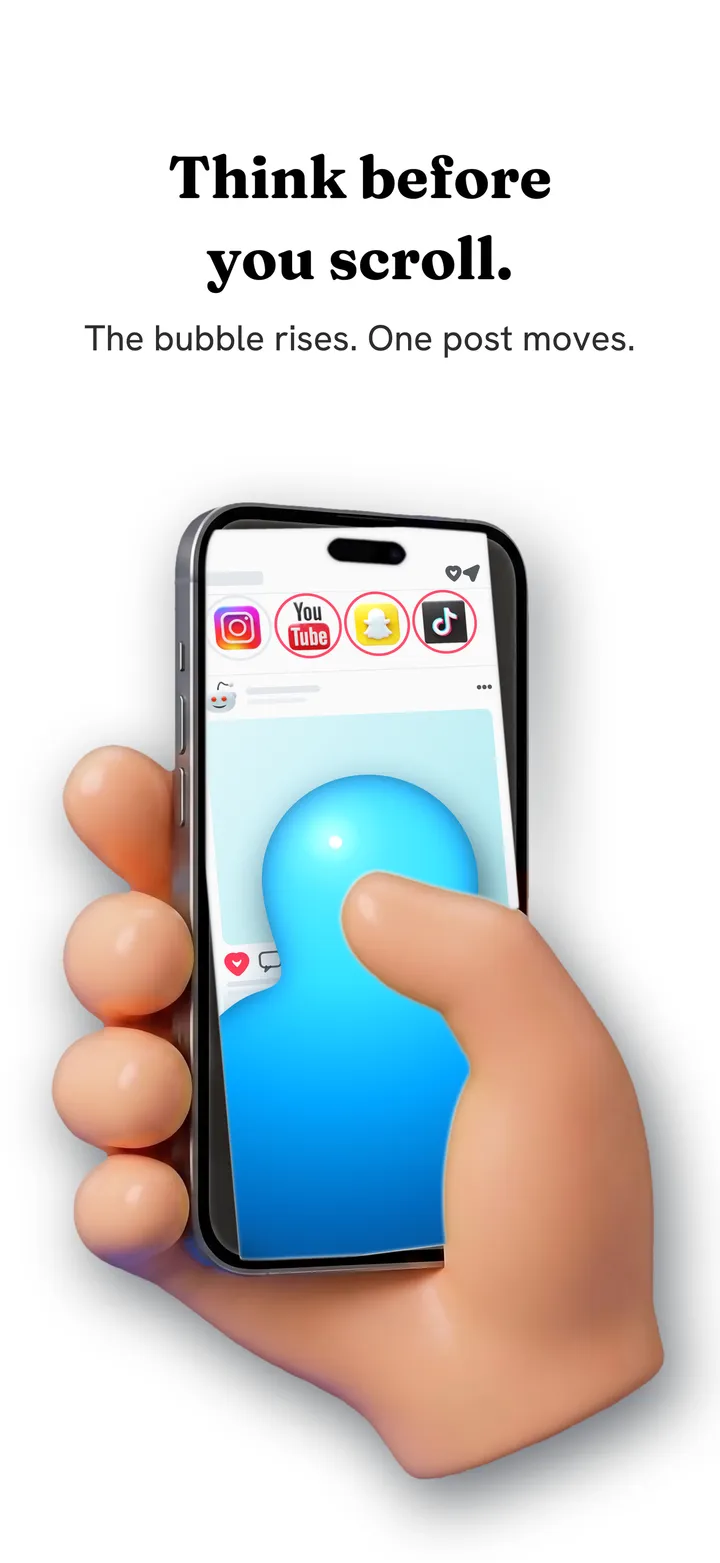
Blocking Shorts removes the surface. Friction fixes the underlying mechanic, which is that the next video costs one flick and nothing ever asks whether you meant it. With scroll friction on, each swipe becomes a drag through on screen fluid. Past a threshold you set, a bubble forms under your thumb and has to rise clear of the screen before the feed advances. Flick fast and the bubble bursts, and a burst advances nothing.
You can still watch Shorts, but you cannot watch them without noticing. The Shorts habit is a reflex tied to one gesture, and it usually takes about a week of that gesture not working before your thumb stops trying. That is why friction survives the moment a hard block gets deleted. The mechanics are in how scroll friction works.
Choosing between the options
Screen Time can limit YouTube or block it on a schedule, and with a passcode someone else holds it works. But it treats YouTube as one object, so when it fires you lose the tutorial along with Shorts, which is why most people tap ignore once and stop trusting it. The longer version is in friction versus blocking.
| Your actual goal | The right tool |
|---|---|
| Less YouTube overall | Screen Time limit or Downtime with a passcode someone else holds |
| Shorts gone, subscriptions kept | Friction browser with Block Shorts |
| No home feed, search still fine | Search Only Mode |
| Videos that end instead of continuing | Hide Recommendations |
| Watching less absent mindedly | Scroll friction |
Common questions
How do I disable YouTube Shorts on iPhone?
YouTube has no permanent switch. Open YouTube inside Fluid Friction's in-app browser and turn on Block Shorts, which hides the shelf, the Shorts tab and the Shorts player together, while search, subscriptions and normal videos keep working.
Can I remove the Shorts tab on iPhone?
Not inside YouTube's own app, because iOS does not let any app modify another. In a friction browser that loads YouTube's mobile site, Block Shorts hides the shelf, the tab and the player together, while search, subscriptions and playback keep working.
How long does hiding the Shorts shelf last?
YouTube states it lasts 30 days, after which the shelf returns to your home feed and you have to hide it again. It also never affects the Shorts tab, Shorts that appear in search results, or the full screen Shorts player.
Do I need a Google account to use this?
No. YouTube works fully logged out inside the friction browser, which makes it the quickest way to test the mechanic. Signing in is optional and happens on Google's own page, so your password is never seen by Fluid Friction.
Does blocking Shorts break normal YouTube videos?
No. Block Shorts targets the Shorts shelf, tab and player only. Normal video playback, search, subscriptions and playlists are unaffected, which is the whole reason to block one surface instead of limiting the entire app.
What about YouTube on Android?
Android can close the Shorts player inside YouTube's real app using the accessibility service, so no browser is involved. The Android guide explains that route and how it differs.